Myop CLI
The Myop CLI (@myop/cli) is a command-line tool for developing, building, and managing Myop components locally. It provides a powerful development server with hot module replacement (HMR) and seamless integration with the Myop dashboard.
For browser-based local development, check out the Myop Dev Extension — a Chrome extension that intercepts requests and serves local components without running a dev server.
Installation
npm install -g @myop/cli
Or use it directly with npx:
npx @myop/cli
Quick Start
- Create a
myop.config.jsonin your component directory:
{
"componentId": "your-component-uuid",
"componentName": "My Component",
"HMR": true
}
- Start the development server:
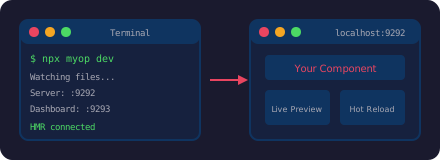
myop dev
- Your component is now available at
http://localhost:9292/view/<componentId>/
Commands
myop (Interactive Mode)
Running myop without arguments starts an interactive menu:
myop
Options:
- Install Myop dependencies - Fetch and generate flow types
- Add flow - Add a flow ID to your config
- Remove flow - Remove a flow ID from your config
- Quit - Exit the CLI
myop dev
Start a development server with file watching and automatic rebuilding.
myop dev
Features:
- Watches
.js,.css, and.htmlfiles for changes - Automatically runs
npm run buildon file changes - Serves built components from
./dist/ - Supports Hot Module Replacement (HMR)
- Provides a visual dashboard at
http://localhost:9292 - Proxies requests for non-local components to
cloud.myop.dev
Ports:
| Port | Purpose |
|---|---|
| 9292 | Main server (component serving & dashboard) |
| 9293 | Management server (component registration) |
Endpoints:
| Endpoint | Description |
|---|---|
/ | Visual dashboard showing registered components |
/view/<componentId>/ | View a specific component |
/consume?id=<componentId> | API endpoint for component consumption |
/events | SSE endpoint for real-time updates |
myop add flow <id>
Add a flow definition to your myop.config.json:
myop add flow 4343dc94-3d39-4267-85d1-3752117302f6
myop remove flow <id>
Remove a flow definition from your myop.config.json:
myop remove flow 4343dc94-3d39-4267-85d1-3752117302f6
myop install
Install Myop generated dependencies (flows, components, refs, props):
myop install
myop sync
Build your component and sync it to the Myop dashboard:
myop sync
This command:
- Runs
npm run build - Starts a temporary server on port 3302
- Opens the Myop dashboard with an upload URL
- Automatically closes after the dashboard fetches the content
Configuration
myop.config.json
Create this file in your component's root directory:
{
"componentId": "394ee658-b61b-46eb-a0ba-4856e986822d",
"componentName": "My Component",
"HMR": true,
"flows": []
}
| Field | Type | Description |
|---|---|---|
componentId | string | UUID of your component (from Myop dashboard) |
componentName | string | Display name for the component |
HMR | boolean | Enable Hot Module Replacement |
flows | string[] | Array of flow IDs |
CLI Options
| Option | Description | Default |
|---|---|---|
-c, --config <path> | Path to config file | ./myop.config.json |
-v, --verbose | Enable verbose output | false |
-h, --help | Show help message | - |
Development Server Features
Multi-Component Support
The dev server supports multiple components simultaneously. Run myop dev in different component directories, and they'll all register with the same server:
Terminal 1 (component-a/):
$ myop dev
🚀 Starting shared dev server...
✅ Registered component: comp-a-uuid
Terminal 2 (component-b/):
$ myop dev
🔗 Connecting to existing dev server...
✅ Registered component: comp-b-uuid
Hot Module Replacement (HMR)
When HMR: true is set in your config, the CLI:
- Injects an HMR script into your built
index.html - Establishes a WebSocket connection with clients
- Pushes updates when files change
- Preserves
myop_init_interfacecalls during updates - Maintains
myop_cta_handlerreferences
HMR enables instant updates without full page reloads, preserving component state.
Visual Dashboard
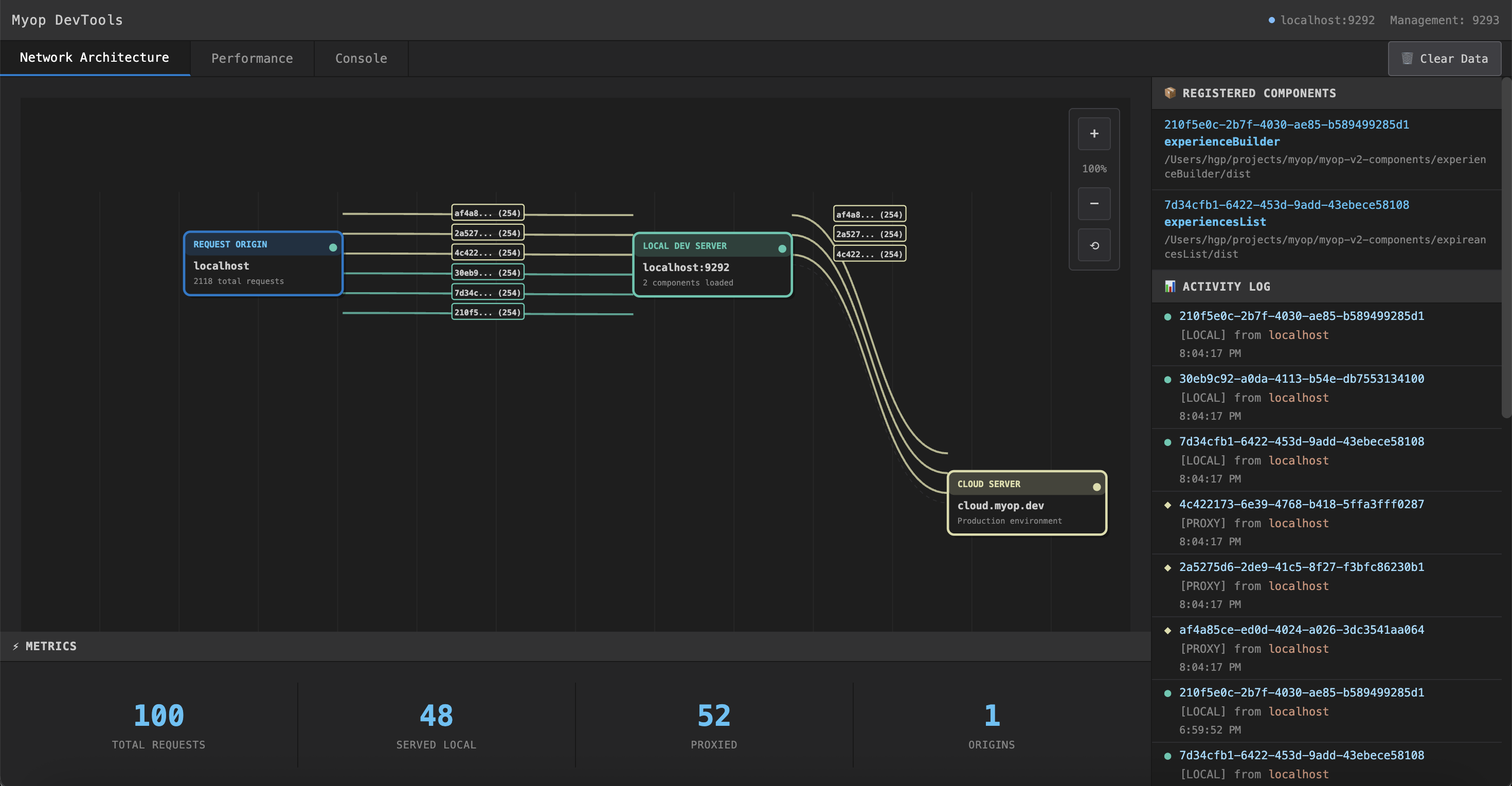
Access http://localhost:9292 to view a real-time dashboard with network visualization, component registry, and activity logging.
Dashboard Features:
| Section | Description |
|---|---|
| Network Architecture | Visual diagram showing request flow between origins, local server, and cloud |
| Registered Components | List of locally registered components with paths |
| Activity Log | Real-time log of LOCAL and PROXY requests |
| Metrics | Total requests, served locally, proxied, and unique origins |
Network Architecture View
The network diagram visualizes how requests flow through the dev server:
- Request Origin — Where requests come from (localhost, external sites)
- Local Dev Server — Components served from your local
./dist/folder - Cloud Server — Requests proxied to
cloud.myop.devfor non-local components
Registered Components Panel
Shows all components registered with the dev server:
Each component displays:
- Component ID — The UUID identifier
- Component Name — Display name from
myop.config.json - Path — Full path to the component's dist folder
Consume API
The /consume endpoint mimics the Myop cloud API:
curl http://localhost:9292/consume?id=<componentId>
Response:
{
"item": {
"name": "componentId",
"id": "componentId",
"consume_variant": [
{
"id": "dev-timestamp-random",
"name": "dev version",
"loader": {
"type": "HTMLLoader",
"shadowRootMode": "localFrame",
"HTML": "<!DOCTYPE html>..."
}
}
]
}
}
For components not registered locally, requests are proxied to https://cloud.myop.dev/consume.
Server Failover
If the main dev server instance exits, other running instances automatically detect the failure and one takes over as the new server, ensuring zero downtime during development.
Workflow Examples
Starting Fresh Development
# 1. Create component directory
mkdir my-component && cd my-component
# 2. Initialize npm project
npm init -y
# 3. Create myop.config.json
echo '{
"componentId": "your-uuid-here",
"componentName": "My Component",
"HMR": true
}' > myop.config.json
# 4. Create source files and build script
# ... your component code ...
# 5. Start development
myop dev
Working with Multiple Components
# Terminal 1: Start first component
cd component-a
myop dev
# Terminal 2: Start second component (joins existing server)
cd component-b
myop dev
# Both components available at:
# http://localhost:9292/view/component-a-uuid/
# http://localhost:9292/view/component-b-uuid/
Syncing to Dashboard
# Build and sync to Myop dashboard
myop sync
Troubleshooting
Port Already in Use
If ports 9292 or 9293 are in use:
# Find and kill the process
lsof -i :9292
kill -9 <PID>
Component Not Found
Ensure your myop.config.json has a valid componentId and ./dist/index.html exists.
HMR Not Working
- Check that
HMR: trueis in your config - Verify WebSocket connection in browser DevTools
- Check for console errors
Build Failing
The CLI runs npm run build on file changes. Ensure your package.json has a working build script:
{
"scripts": {
"build": "your-build-command"
}
}